
Merge JPG Images Online Free and Instant
Combine multiple JPG files into one image. No upload needed. Runs entirely in your browser.
Drag & Drop JPG / image files here or click to upload
Merged JPG Preview
How to Merge JPG Images Online for Free
Do you have two or three JPG photos and need to put them side by side? Maybe you want to show a before-and-after picture. Or you need to combine screenshots into one file to send to someone. Whatever the reason, merging JPG files does not have to be hard.
You do not need Photoshop. You do not need to download anything. You can merge JPG images right here in your browser in less than a minute.
This guide will show you exactly how to do it.
What Does It Mean to Merge a JPG File?
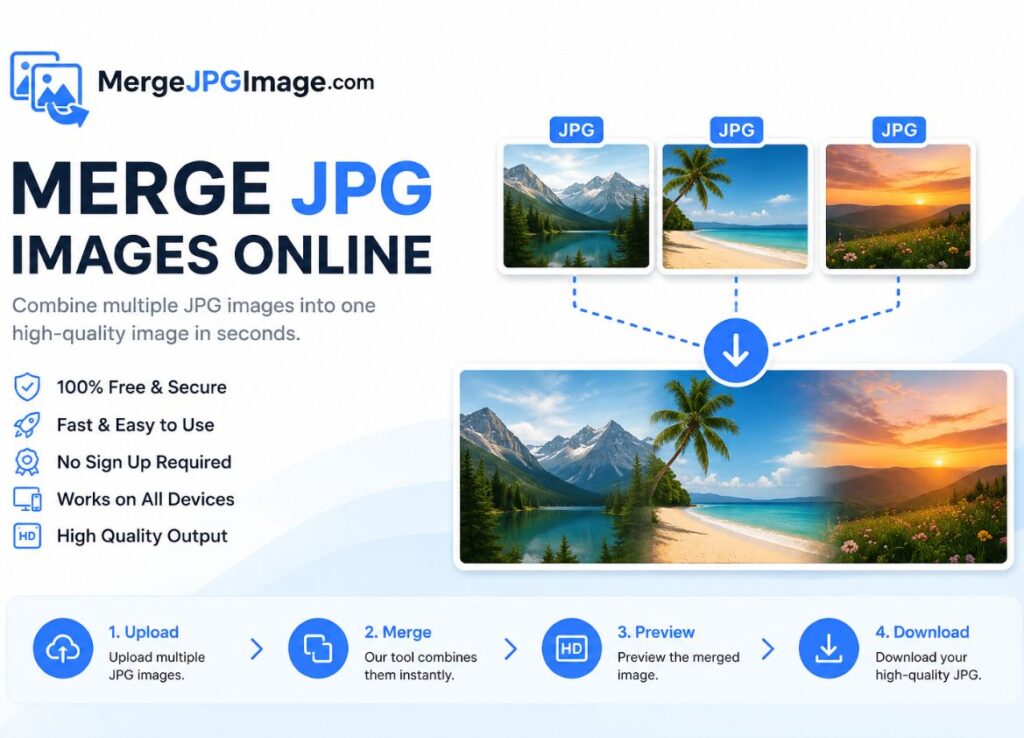
When you merge JPG files, you take two or more separate images and combine them into one single image file.
Think of it like taping two photos together. One photo goes on the left. The other goes on the right. Now you have one wide photo instead of two small ones.
You can also stack them on top of each other. One photo on top, one photo on the bottom. That gives you one tall image.
The result is saved as a single JPG file. You can share it, print it, or upload it anywhere you would use a normal photo.
Why Would You Need to Merge JPG Images?
Here are some real reasons people merge JPG files every day:
Before and after photos. If you want to show a haircut, a home renovation, a weight loss result, or anything that changed over time, you put the old photo next to the new one. Merging them makes it easy to share as one image.
Screenshots. You took three screenshots of a conversation or a webpage. You want to send them as one file instead of three separate attachments. Merge them vertically and done.
Product photos. You sell something online and want to show the front and back of the product in one image. Merge two JPG files side by side.
Comparison images. You want to show two options next to each other so someone can choose. Merge them horizontally.
Collages. You want to combine a few photos from a trip or an event into one image to post online.
All of these are easy to do when you can merge JPG images quickly.
Why Use an Online Tool to Merge JPG Files?
You could open a photo editor like Photoshop or GIMP. But those programs take time to learn. They also take up space on your computer.
An online JPG merger is faster. You go to the page, upload your files, click a button, and download your merged image. That is it.
Here is why an online tool is a good choice:
- No download needed. The tool runs in your browser. Nothing gets installed on your computer.
- It is free. You do not pay anything.
- It is fast. The whole process takes less than a minute.
- It works on any device. You can use it on a Windows PC, a Mac, a Chromebook, or even your phone.
- Your files stay private. This tool merges images directly in your browser. Your photos are never sent to a server. Nobody else sees them.
How to Merge JPG Images Step by Step
Using this tool is simple. Here is exactly what to do.
Step 1: Add Your JPG Files
Click the box that says “Drag and Drop image files here or click to upload.” You can also click the “Add JPGs” button.
Find the JPG files you want to merge on your computer. Select them and click open. You can add more than two files if you want.
You will see small previews of your images appear on the screen. If you added the wrong image, click the X button on that preview to remove it.
Step 2: Choose How to Merge Them
You have two choices:
Merge Horizontally puts your images side by side. The first image goes on the left. The second goes on the right. This is good for before-and-after photos or comparisons.
Merge Vertically stacks your images on top of each other. The first image goes on top. The second goes below it. This is good for combining screenshots or creating a tall collage.
Pick the one that works for what you need.
Step 3: Choose Your Output Format
You can save your merged image as:
- JPG – The most common image format. Small file size. Great for photos.
- JPEG – Same as JPG, just a different file extension. Works exactly the same way.
- PNG – A bit larger file size but no quality loss. Good if you need sharp edges or text in your image.
- PDF – Good if you want to print the image or share it as a document.
For most people, JPG is the right choice.
Step 4: Click Merge JPG Files
Click the blue “Merge JPG Files” button. The tool combines your images on a canvas inside your browser. This takes about one second.
Step 5: Preview and Download
A preview of your merged image will pop up on the screen. Check that it looks the way you want.
Click “Download Merged JPG” to save the file to your computer.
That is all there is to it.
Tips for Getting the Best Results
Use images with the same height when merging horizontally. If one image is taller than the other, the tool will scale them to match. But starting with images of the same height gives you a cleaner result.
Use images with the same width when merging vertically. Same idea. If one image is wider, the tool scales to match. Same-width images look cleaner when stacked.
Order matters. The images appear in the merged file in the order you added them. If you want Image A on the left and Image B on the right, add Image A first.
Use JPG for photos. If you are merging regular photos, save as JPG. The file size will be smaller and it will upload faster anywhere you want to share it.
Use PNG for screenshots or graphics. Screenshots often have text or sharp lines. PNG keeps those sharp. JPG can make them look a little blurry.
What Kinds of Images Work Best?
This tool works with JPG, JPEG, and PNG files. Most photos taken on a phone or camera are already JPG files. Screenshots can be PNG or JPG depending on your device.
You can mix formats. For example, you can merge a JPG photo with a PNG screenshot. The tool handles it fine.
The tool works best when your images are a similar size. If one image is very large and the other is very small, the result might not look balanced. Try to use images that are close in dimensions for the cleanest merge.
Common Questions About Merging JPG Files
Is it really free? Yes. There is no cost. No trial. No sign-up. Just open the page and use it.
Do my photos get uploaded anywhere? No. Everything happens inside your browser. Your images never leave your device. No one can see them.
How many JPG files can I merge at once? You can add more than two. The tool will combine all of them in the order you added them.
Can I merge JPG files on my phone? Yes. The tool works on mobile browsers too. Open the page on your phone, tap to add your photos, and download the merged file.
What if I do not like how it turned out? Click the X on the preview to close it. Then click Clear All to start over. You can re-add your images in a different order or try a different merge direction.
Can I merge more than two images? Yes. Add as many as you need. They will all combine into one image in the order you uploaded them.
Other Ways People Use This Tool
Beyond the common uses, here are a few more ways people merge JPG images:
Real estate listings. Show the inside and outside of a home in one image.
School projects. Combine diagrams or pictures for a presentation.
Social media posts. Create a side-by-side image to post on Instagram or Facebook without using a separate app.
Work reports. Attach one merged screenshot instead of ten separate ones to an email.
Recipes. Show the ingredients on one side and the finished dish on the other.
Fitness tracking. Combine weekly progress photos into one image to track changes over time.
Why This Tool Is Better Than Using Your Phone’s Built-in Editor
Most phones have a basic photo editor. But combining two separate photos into one is not always easy or even possible without downloading an app.
This tool lets you do it in seconds from any browser. You do not need to install an app. You do not need an account. And your photos never leave your device, which keeps them private.
Merge JPG Files Right Now
You already have the tool at the top of this page. Add your JPG images, pick your layout, and click merge. Your combined image will be ready to download in seconds.
No software. No account. No cost. Just a fast, simple way to merge JPG files online.